

Birthday Wishes
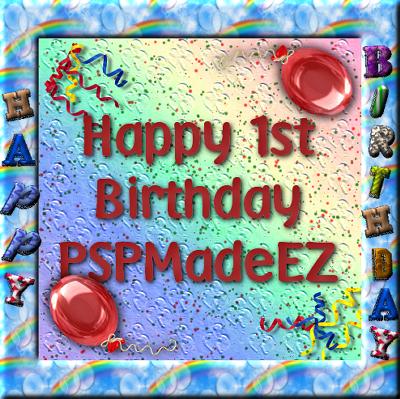
This tutorial is a team collaboration.
You will need PSP7, VanDerLee's Adrenaline Snowflake filter, the Texturizer filter, and this Zip file
containing the background image, Happy Birthday .gifs, balloon, gradient fill, and the balloonstrio.psd file.
Install the Snowflake and Texturizer filters in your Plugins folder, the gradient in your PSP gradients folder,
and the balloonstrio.psd where you keep your .psd files. Open your background image, .gifs, and
balloon in PSP and minimize for now.
Save your work often!
Open a new image, 400 x 400, transparent. Set your foreground styles palette to gradient,
select MVRainbow, Invert checked, Angle 45, Repeats 0, Linear (top). Floodfill your
image. Now, Effects, Artistic Effects, Colored Pencil, Detail 50, Opacity 35.
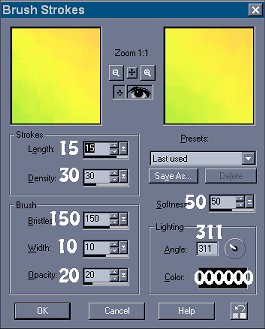
Effects, Artistic Effects, Brush Strokes, settings shown:
Effects, Plugins, Texturizer, Load Texture. Scroll to find balloonstrio.psd.
Scaling 50%, Relief 25, Light Direction Top, Invert Checked.
Add a layer and change the gradient to solid color, #A8CBF1.
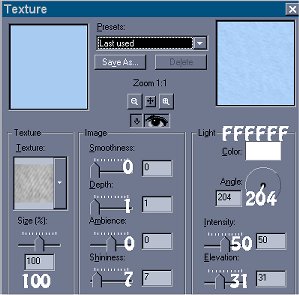
Floodfill, then Effects, Texture Effects, Texture, Denim, settings shown:
Lower the Opacity to 70 and change the Blend Mode to Hardlight. Layers, Merge All, Flatten.
Add a layer, select your Text tool. Choose a "Bold" font. The one used is "Pooh" set at
48. Turn off the foreground color and change the background color to #B13B3D. Type your text.
While still selected, add a Cutout V -- 6, H -- 9, Opacity 60, Blur 20, Color #800000.
Keeping selected, add a Drop Shadow V and H -- 2, Opacity 100, Blur 1, Color #000000.
Open your balloon tube and copy and paste as a new layer. Resize by 75% until you have
the size you want. In the finished image above, I resized 3 times. Effects, Sharpen, Sharpen.
Move into position. I used Image, Rotate and rotated by 10 degrees left, All Layers Unchecked
to get the bottom balloon as it is. Layers, Duplicate, Image Mirror, Image Flip. Move into
position if needed. Close all layers except the balloon layers. Merge Visible. Add a
Drop Shadow V --2, H -- 4, Opacity 70, Blur 15, Color #000000. Repeat, changing the
V and H to -2 and -4.
Activate the background layer and add a layer. Using your tube tool select Colored
Streamers set at size 30. Note from Jon:
"Remember when placing any thing at random to use odd numbers rather than even numbers
of items because it is more pleasing to the eye."
When you are finished placing your streamers, apply a Drop Shadow V -- 3, H -- 6,
Opacity 50, Blur 5.2, Color #808080.
Add a layer. Effects, Plugins, VDL Adrenaline, Snowflakes
Confetti -- Red, Amount 27, Size range begin 0, Size range end 16, Hardness 0,
Transparency 0, Random Seed 0. Repeat changing the confetti to Christmas -
Natural Green, Amount 44, Size range begin 0, Size range end 16, Hardness 51
Transparency 0, Random Seed 177. Set your Opacity to 75 and Blend Mode to Multiply.
Layers, Merge All, Flatten. Minimize this image for now.
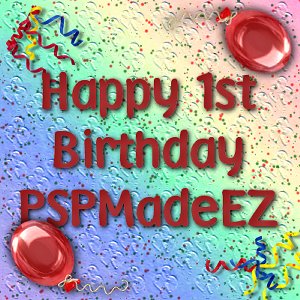
Open a new image 500 x 500, white. Change your background color to the
blue we used earlier, #A8CBF1. Images, Add Borders, 60 Symmetrical.
Select the border with your Magic Wand. Change your foreground style palette
to pattern, select the balloons image, Size 50%, Angle 0 and floodfill your border.
Keep selected and add an Inner Bevel, settings shown:
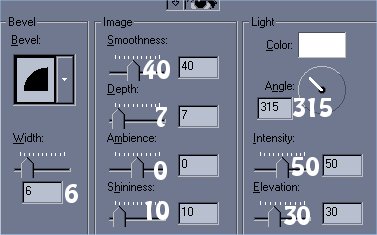
Keep selected, Selections, Promote to Layer.
Change your rear styles palette to solid color #000000.
Click on Birthday.gif to activate it, Edit, Copy, Activate your frame image,
Paste as a Transparent Selection. Move into place on the right side of the
frame. Add an Inner Bevel, same settings and a Drop Shadow, V and H -- 1,
Opacity 50, Blur 3.9, Color #808080. Repeat with Happy.gif, placing it on the left side.
Activate your background layer and delete. Save your frame as
Happy Birthday.pfr to your PSP Frames folder and close image.
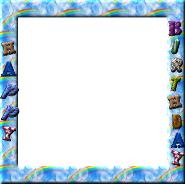
Activate the image made earlier, Images, Picture Frame. Scroll to find
Happy Birthday. Next -- Frame outside image. Finish.
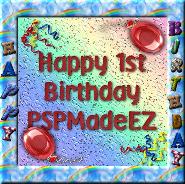
Layers, Merge All, Flatten. Resize, name and save your image as a .jpg.
Jon, Lloyd and I hope you enjoy doing this tutorial.
Jon did the blue background, text, confetti and balloons.
Lloyd made the frame and the Happy Birthday images.
They left me wondering what I could add! LOL
So I made the background image for the frame, added
the gradient layer and effects, and streamers.
Be sure to check out the other Team tutorials on the
Team Spirit Tutorials main website.
This tutorial is owned by Team Spirit Tutorials and
the Team members who wrote it.
© Team Spirit Tutorials